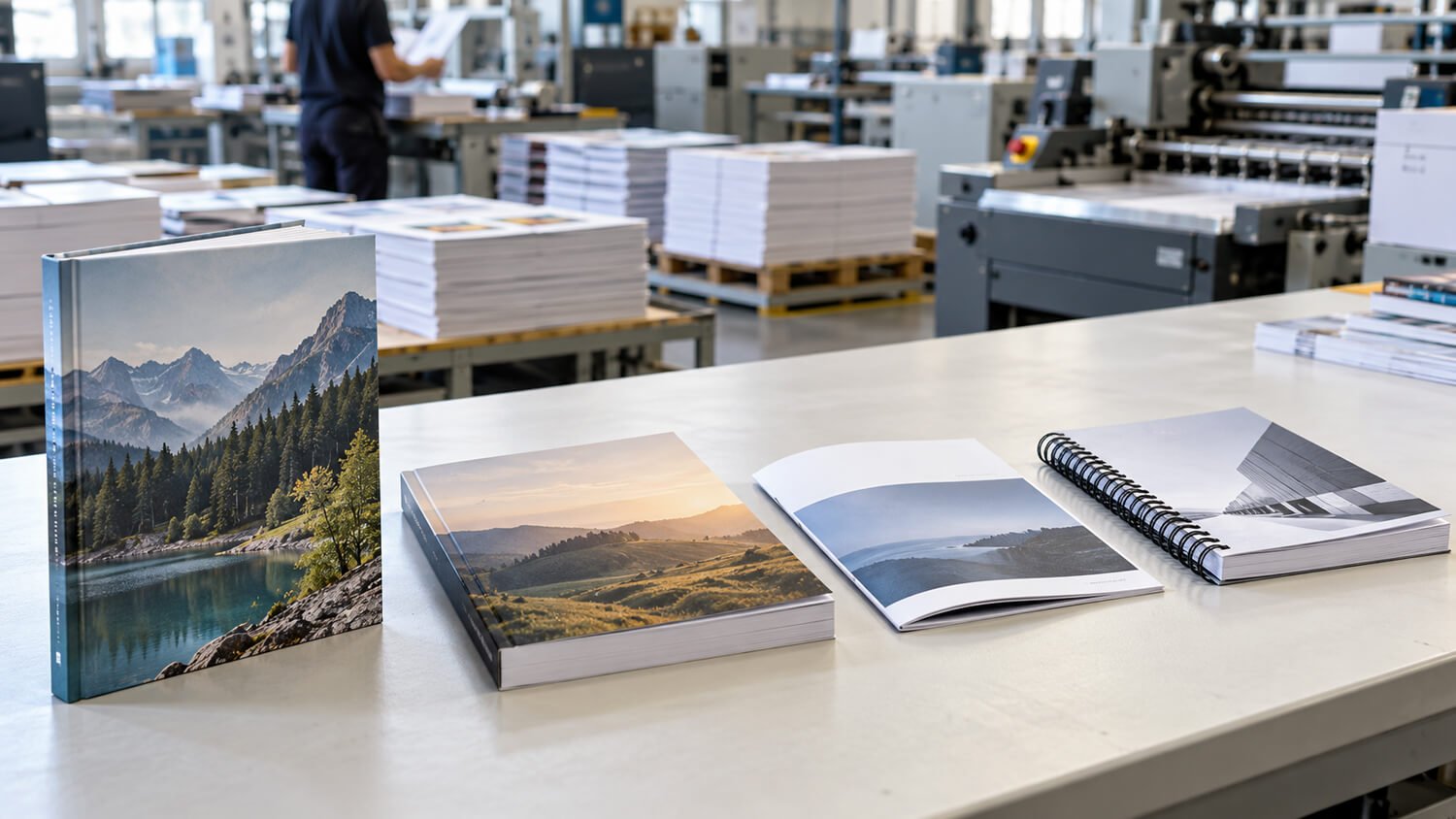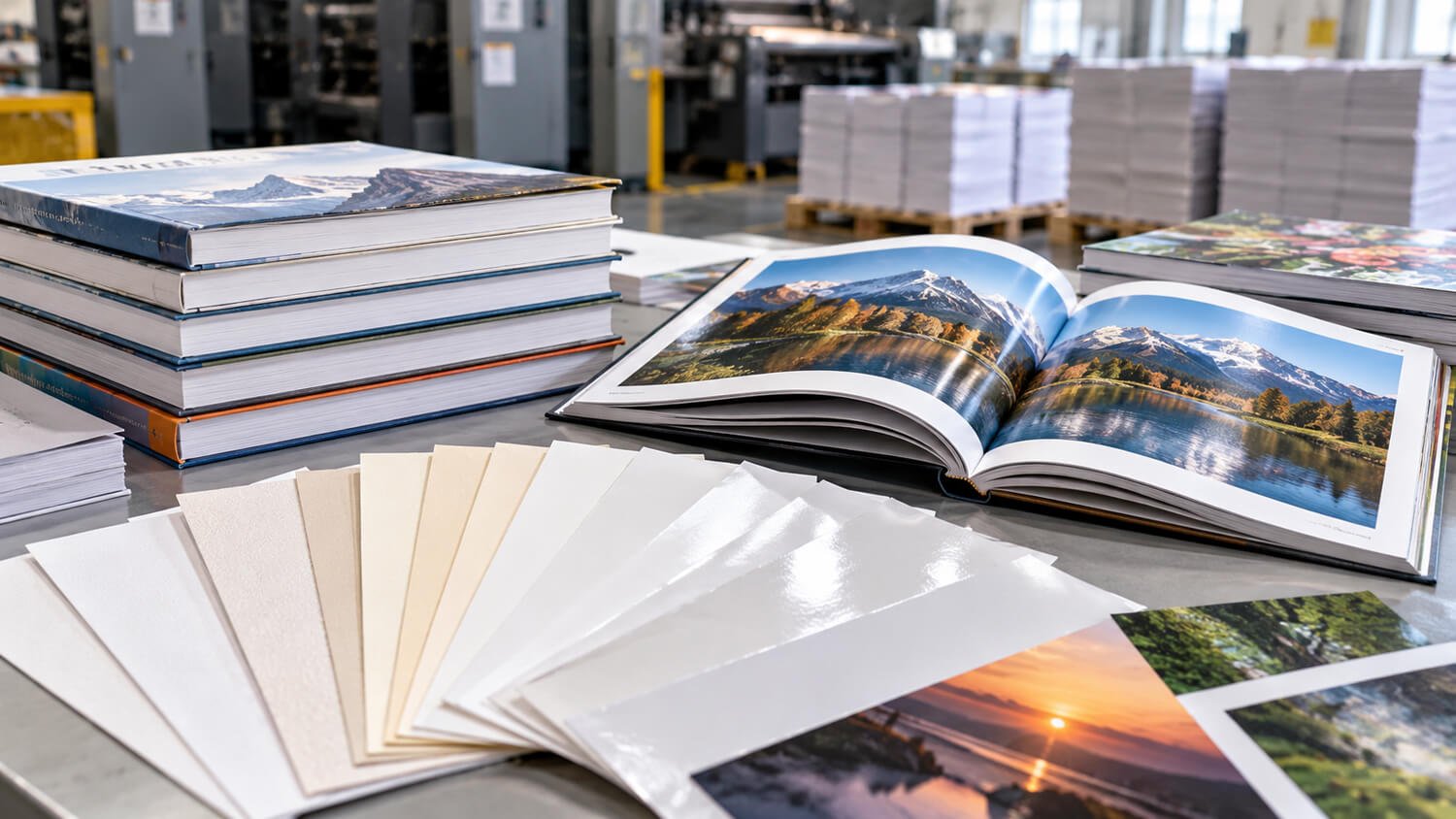
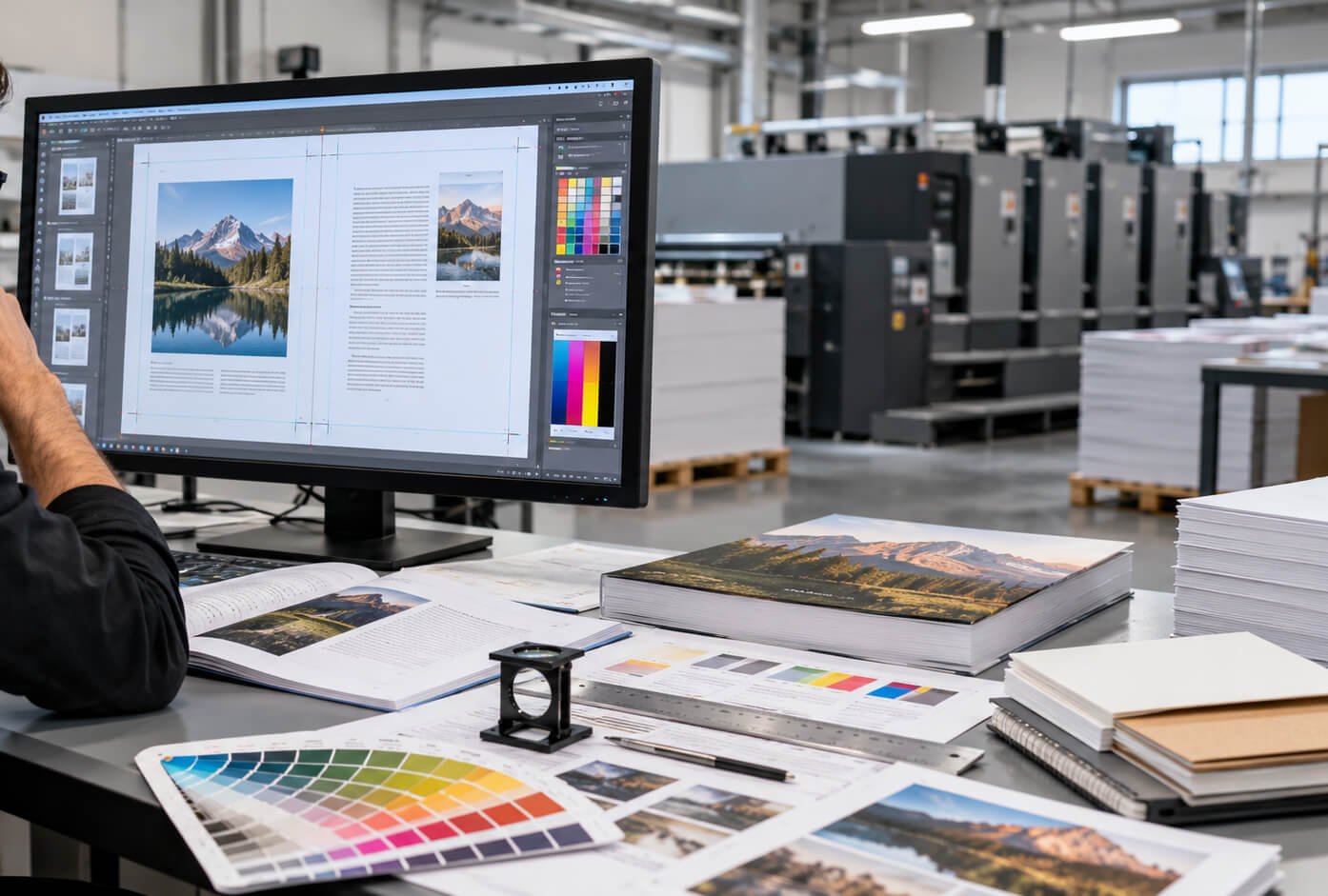
To Prepare Print-Ready Files correctly, you need to set the final trim size, add sufficient bleed, keep important content inside safe margins, use high-resolution images, manage colors for print, embed fonts, and export the artwork as a press-quality PDF that follows your printer’s specifications. The cover and interior should normally be supplied as separate files and checked before production starts.
For publishers, brands, distributors, and purchasing managers, good artwork preparation isn’t simply a graphic design issue. It directly affects production cost, lead time, print quality, and delivery schedules.
A book may look perfect on a laptop screen but still create serious problems on a printing press. An image can appear sharp online while having too little resolution for offset printing. A black background may look correct in RGB but print differently after conversion to CMYK. A cover may have the right front and back dimensions while using the wrong spine width.
These problems become more expensive when discovered after proofing or plate production.
From a book manufacturer’s point of view, the safest workflow is therefore simple: confirm production specifications first, build artwork around those specifications, export carefully, and preflight everything before final approval.
This guide explains that workflow from a commercial printing perspective. It is especially useful if you’re ordering:
- Hardcover books
- Softcover books
- Children’s books
- Catalogs
- Coffee table books
- Textbooks
- Workbooks
- Journals and notebooks
- Art books
- Manuals
- Corporate publications
If you’re sourcing internationally, a clean file package also reduces questions between your design team and the printing factory. Fewer revisions usually mean faster proofing and a much smoother path to mass production.
Prepare Print-Ready Files: Start With the Printer’s Specifications
One of the most expensive artwork mistakes happens before design work even starts: the buyer creates the complete book and only asks the printer for specifications afterward.
The safer approach is the opposite.
Before you Prepare Print-Ready Files, confirm the physical production requirements with your printing manufacturer. Book construction affects artwork dimensions, cover layout, margins, spine width, and sometimes even page count.
Your printer should ideally know the following information:
| Specification | Example |
|---|---|
| Finished book size | 210 × 297 mm |
| Binding | Perfect bound |
| Interior pages | 160 pages |
| Interior paper | 105 gsm coated paper |
| Interior printing | 4/4 CMYK |
| Cover stock | 300 gsm art card |
| Cover printing | 4/0 CMYK |
| Cover finish | Matte lamination |
| Bleed | 3 mm |
| Quantity | 3,000 copies |
The binding method is particularly important.
A saddle-stitched booklet behaves differently from a 300-page perfect-bound book. A case-bound hardcover requires another cover structure. Spiral and Wire-O books also need additional room near the binding edge.
Spine width should never be estimated from page count alone. Two books with the same page count can have different spine widths because paper thickness varies.
Paper described as “100 gsm” also doesn’t always have identical caliper from one mill to another.
For that reason, professional printers often create a final cover template after the paper, page count, and binding structure are confirmed.
For B2B buyers, this first step saves more than design time. It prevents late changes to barcodes, logos, spine text, cover images, and other elements that may need repositioning when the physical construction changes.
Set the Correct Trim Size, Margins, and Safe Area
The trim size is the final size of the book after the printed sheets have been cut and bound.
If you’re producing a 210 × 297 mm finished book, for example, the document’s intended trim area should correspond to that size. Bleed sits outside that boundary.
Don’t simply create a larger page and guess where trimming will happen.
You also need a safe area inside the page.
Printing, cutting, folding, and binding are mechanical processes. Small production tolerances are unavoidable. Important text, logos, page numbers, and faces should therefore not sit directly against a trim line.
A simple layout can be understood like this:
| Area | Purpose |
|---|---|
| Bleed area | Artwork extending beyond the final cut |
| Trim line | Final edge of the finished page |
| Safe area | Zone where important content should remain |
| Gutter | Extra inside space near the binding |
The inside margin often needs more attention than the outer margin.
In a thick perfect-bound book, text positioned too close to the spine becomes harder to read. The reader may need to force the book open wider, which isn’t ideal for usability or binding durability.
Hardcover books, thick catalogs, and reference books can require different gutter planning.
This is why generic internet templates shouldn’t automatically replace your printer’s specifications.
Another common mistake is manually shifting left and right pages to compensate for binding. Unless your printer specifically asks you to do that, discuss it first. Professional imposition and binding workflows already account for many production requirements.
Your goal as the buyer isn’t to imitate the printer’s prepress department. Your goal is to supply clean, consistently sized pages with sensible margins and clearly defined trim dimensions.
Add Bleed Correctly for Full-Bleed Book Pages
Bleed is artwork that extends beyond the final trim edge. It prevents unwanted white lines from appearing when a background color, photograph, or illustration is supposed to reach the edge of the page.
A common commercial book specification is approximately 3 mm or 0.125 inch of bleed, although you should always follow the requirements of your actual printer.
For example, imagine that your book contains a full-page photograph.
The photograph shouldn’t stop exactly at the trim line. Instead, it should continue into the bleed area. When the printed sheet is cut, a small variation in trimming won’t expose an unprinted white edge.
Adobe describes bleed as artwork extending beyond the printing boundary to provide a margin for trimming, and its professional print tools allow bleed settings to be included when exporting PDF files.
Typical elements that should extend into bleed include:
- Full-page photographs
- Colored backgrounds
- Decorative patterns
- Illustrations touching an edge
- Graphic shapes intended to continue off the page
Text shouldn’t extend into bleed.
Neither should page numbers, logos, important borders, QR codes, or essential parts of an illustration.
One mistake we frequently see in production artwork is a designer adding a 3 mm white border around the existing page and calling it “bleed.” That doesn’t solve the problem. The actual background or image must extend outward.
Another problem appears when designers export the document without enabling the document’s bleed settings.
The original file may be correct, yet the PDF delivered to the printer contains no bleed.
Always open the exported PDF and inspect it. Don’t assume that correct InDesign or Illustrator artwork automatically means the resulting PDF is correct.
Check Image Resolution and Graphic Quality Before Printing
Image quality is one of the biggest differences between screen design and commercial printing.
A photograph can look excellent on a website yet become soft or pixelated when printed.
For many normal continuous-tone book images, around 300 PPI at the final reproduction size is a practical target. Adobe’s current InDesign print guidance specifically flags low-resolution images below 300 ppi as an issue worth resolving during print preparation.
The phrase “at the final size” matters.
Suppose you have a 300 PPI image and enlarge it to twice its original dimensions in your layout. Its effective resolution falls significantly.
That means checking only the original file properties isn’t enough.
You should check effective PPI inside the layout.
A practical image review should cover:
| Item | Recommended Check |
|---|---|
| Photographs | About 300 PPI at placed size |
| Logos | Prefer vector artwork |
| Line drawings | High-resolution or vector |
| Screenshots | Review carefully for pixelation |
| Enlarged images | Check effective resolution |
| JPEGs | Avoid repeated heavy compression |
Vector graphics are especially useful for logos, icons, text-based diagrams, and line drawings because they scale without normal pixelation.
Be careful with images downloaded from websites. Their physical dimensions may look large, but their usable print resolution can be poor.
AI-generated or digitally enhanced artwork also deserves inspection at 100–200% magnification. Fine details, typography, hands, textures, or repeated patterns can contain defects that become more visible in high-quality printing.
For premium coffee table books, photography books, catalogs, or art publications, ask the printer whether a physical color proof is appropriate before approving mass production.
Convert RGB Artwork to the Correct CMYK Printing Workflow
Computer monitors create color using RGB light. Most conventional four-color commercial printing produces color using CMYK inks.
That difference matters.
Bright RGB colors—especially strong blues, greens, oranges, and neon-like tones—may sit outside a printing press’s reproducible CMYK gamut.
Simply expecting the printed book to match an RGB monitor is therefore risky.
A better workflow is to discuss color management with your printer before conversion. The correct CMYK profile can depend on paper, press conditions, geographic standards, and production workflow.
Adobe’s professional print workflow supports color conversion during PDF export and allows users to choose a printer-specified destination color profile.
Also pay attention to black.
For ordinary small black body text, a simple 100% K black is commonly preferred because it avoids unnecessary registration between several printing plates.
Large black backgrounds may sometimes use a rich black made from multiple process colors. However, the exact CMYK formula should be agreed with your printer. Excessive total ink coverage can create drying and production problems.
A useful review looks like this:
| Artwork | Main Concern |
|---|---|
| Body text | Keep black simple and sharp |
| Large black areas | Confirm suitable rich-black formula |
| Brand colors | Provide references or Pantone information |
| Photos | Check CMYK conversion |
| Spot colors | Confirm they are intentionally retained |
| RGB objects | Review before production |
For strict corporate brand colors, packaging-style consistency, or premium publishing, sending physical samples, Pantone references, or previously approved printed material gives the manufacturer a better target than sending screenshots.
Color communication should be measurable whenever possible.
Embed Fonts and Check Text Before PDF Export
Fonts cause fewer problems than they did years ago, but they haven’t disappeared from prepress workflows.
If a font isn’t embedded correctly, the printer’s software may substitute another typeface. Even a small substitution can alter line breaks, page flow, headings, tables, and pagination.
Adobe’s current print-ready workflow specifically identifies missing fonts as a critical issue that should be corrected before professional printing.
Use properly licensed fonts that permit embedding.
Before exporting your final PDF, check:
- Missing fonts
- Font substitutions
- Overset text
- Hidden text boxes
- Incorrect characters
- Unexpected line breaks
- Broken symbols
- Very small reversed text
- Accidental synthetic bold or italic styles
You should also inspect black body text carefully.
A paragraph that appears black on screen may have been created as a four-color CMYK mix. This can make small typography more difficult to control on press. In ordinary book interiors, simple black text is often more appropriate.
Should you convert every font to outlines?
Usually, that’s not necessary for a properly created PDF with fonts embedded. Outlining all text can also make later corrections more difficult and may increase file complexity.
Certain logos or special display typography may be converted to outlines intentionally, but that is different from automatically outlining an entire 300-page book.
From a purchasing perspective, retain both the editable source files and the final approved PDFs.
If a typo is discovered during proofing, your designer should edit the source document and export a new controlled version rather than attempting uncontrolled last-minute modifications across several PDF copies.
Prepare Interior Pages in the Correct Order
For most book-printing projects, supply interior artwork as individual pages in reading order unless your printer specifically requests another format.
In other words, don’t manually impose printer spreads.
A professional printing factory normally handles imposition according to press sheet size, binding method, folding signature, and production equipment.
For a 160-page book, your PDF should generally contain pages 1 through 160 in normal sequence.
Check deliberate blank pages as well.
Blank pages are still pages. If your design requires a blank verso before a chapter begins, it should generally remain in the artwork rather than being removed because “there’s nothing on it.”
Before file submission, compare:
- PDF page count
- Purchase order page count
- Quotation page count
- Printer specification
- Final pagination
A page-count mismatch is a major warning sign.
For saddle-stitched books, page counts also normally follow production structures based on folded sheets. Discuss unusual page counts with the printer before finalizing the artwork.
Don’t attempt to calculate creep or signature positioning yourself unless your supplier specifically requires it. Those are production responsibilities tied to the actual printing and binding workflow.
Another important check involves spreads.
A photograph crossing two pages can be visually effective, but part of the image will enter the binding area. Perfect binding and case binding don’t open exactly like center-stitched publications.
Avoid placing a person’s eyes, small text, or other critical detail directly in the gutter.
For important cross-spread artwork, ask your printing partner to review the design before final approval.
Prepare the Book Cover, Spine, and Back Cover Separately
Book covers are more complicated than simply combining two page-sized rectangles.
The complete cover commonly consists of:
Back cover + spine + front cover, plus bleed and any construction allowances required by the chosen binding method.
For a perfect-bound paperback, a simplified calculation is:
Total flat cover width = back cover width + spine width + front cover width + bleed
However, spine width shouldn’t be guessed.
It depends on:
- Interior page count
- Paper caliper
- Binding structure
- Cover construction
- Manufacturer’s production specifications
A 200-page book using bulky uncoated paper can have a different spine from a 200-page book using thinner coated stock.
That’s why professional buyers should request a cover template after interior paper and final page count have been confirmed.
Hardcover artwork requires even more care. Depending on construction, the template may include board dimensions, spine, hinge or groove areas, turn-ins, wrap allowances, and bleed.
Keep spine text away from the fold or hinge boundaries.
Also inspect:
- ISBN and barcode placement
- Publisher logo
- Price information
- Back-cover text
- Spine title orientation
- Lamination or special-finish areas
- Spot UV layers
- Foil stamping artwork
- Embossing/debossing files
Special finishes usually need separate clearly named vector layers or files.
For example, a foil area shouldn’t simply exist as a gold-looking CMYK graphic. The manufacturer needs to know exactly which vector objects belong to the foil plate.
A good printer will normally provide instructions for these finishing layers.
Export a Press-Ready PDF Using the Right PDF Settings
Once the layout is correct, export the production artwork as a professional print PDF rather than using a generic screen-optimized PDF preset.
Adobe currently recommends print workflows such as PDF/X-4 for professional output and provides PDF/X conversion and prepress tools in Acrobat and InDesign.
Your printer’s requested preset takes priority, however.
Common export checks include:
| PDF Setting | What to Check |
|---|---|
| Page export | Pages rather than unintended spreads |
| Bleed | Include document bleed |
| Images | Avoid excessive downsampling |
| Fonts | Embed correctly |
| Color | Follow agreed output profile |
| Transparency | Follow PDF standard requested |
| Security | Don’t password-lock production PDFs |
| Page boxes | Verify trim and bleed boxes |
Crop marks are another area where designers sometimes add unnecessary information.
Some printers want crop marks. Others prefer a clean PDF containing the correct trim and bleed boxes and add production marks themselves during imposition.
Ask first.
Adobe’s prepress tools distinguish between media, crop, trim, bleed, and art boxes because those boundaries affect positioning and print production.
You can review Adobe’s current professional guidance here:
Adobe: Produce Print-Ready PDF Files in InDesign
A PDF shouldn’t be considered finished simply because the export button worked.
Open the exported file independently and inspect it page by page.
Run a Professional Preflight Check Before Sending Files
Preflight is the final technical inspection performed before artwork enters production.
Think of it like inspecting a product before shipment. The document may look right visually while still containing hidden technical problems.
In Adobe InDesign, preflight can identify issues such as missing fonts, low-resolution images, and overset text. Acrobat’s print-production tools can also inspect PDF/X compliance, page boxes, colors, separations, and other production characteristics.
Your own preflight checklist should include at least the following:
Document checks
- Correct trim dimensions
- Correct total page count
- Correct page sequence
- No accidental blank pages
- Correct orientation
Artwork checks
- Bleed present where needed
- High-resolution images
- No missing graphics
- Important content inside safe areas
- Correct cover dimensions
Typography checks
- Fonts embedded
- No missing fonts
- No overset text
- Page numbers correct
- Table of contents matches pagination
Color checks
- Intended CMYK workflow
- Spot colors clearly identified
- Black text configured correctly
- Special finish layers separated
PDF checks
- Correct PDF version
- Correct trim and bleed boxes
- No passwords
- No unnecessary comments
- No hidden revision marks
File naming matters too.
Instead of:
book-final-new2-revised-FINAL.pdf
use controlled names such as:
ABC_Book_Interior_V05_Approved_20261014.pdf
and:
ABC_Book_Cover_V03_Approved_20261014.pdf
Clear revision control helps prevent an outdated file from reaching production.
Review Digital and Physical Proofs Before Mass Production
A print-ready PDF is not the final production approval.
Proofing is still essential.
The appropriate proof depends on the book, quantity, printing method, budget, and color requirements.
A digital PDF proof is useful for checking text, pagination, layout, crop positions, and general content.
A printed digital proof adds another level of confidence because you can inspect physical size, image reproduction, margins, and reading experience.
For high-value projects, you may also request:
- Contract color proof
- Bound dummy
- Unprinted binding sample
- Printed and bound prototype
- Material swatches
- Foil samples
- Lamination samples
- Special-finish samples
However, buyers should understand that a digitally printed proof may not exactly reproduce the color of a final offset production run.
Ask what type of proof you’re receiving and what it is intended to verify.
When reviewing a physical proof, don’t look only for spelling errors. Handle the book as your customer would.
Open it.
Read near the gutter.
Check the cover alignment.
Inspect the spine.
Look at photographs under normal lighting.
Check small reversed text and dark shadow detail.
Review the barcode.
Make sure important objects aren’t too close to trimming or binding areas.
For B2B projects, establish an approval process as well. One authorized person should issue the final production approval. This prevents contradictory comments from several departments from reaching the manufacturer after production has begun.
Print-Ready File Checklist for Publishers and Book Buyers
A well-organized artwork package reduces email exchanges and makes quotation confirmation, proofing, and production easier.
Before uploading files to your book manufacturer, use a structured handover package.
Interior File
Confirm:
- Final trim size
- Complete page count
- Correct reading order
- Required bleed
- Suitable image resolution
- Fonts embedded
- Color mode checked
- Blank pages intentional
- No visible guides or comments
Cover File
Confirm:
- Printer-approved cover template used
- Correct spine width
- Front cover positioned correctly
- Back cover positioned correctly
- Barcode finalized
- Bleed included
- Spine text inside safe zone
- Special finishes separated
Production Specification
Send the supplier a written specification rather than relying on previous emails.
| Item | Approved Specification |
|---|---|
| Size | 210 × 297 mm |
| Pages | 160 + cover |
| Binding | Perfect binding |
| Interior | 105 gsm coated |
| Cover | 300 gsm coated |
| Printing | CMYK |
| Finish | Matte lamination |
| Quantity | 5,000 copies |
| Packing | Export cartons |
This helps the factory compare your artwork with the quotation.
For repeat orders, keep the previous approved file and production specification together. Don’t assume the factory knows whether a replacement PDF changes only one spelling error or completely changes the color artwork.
Clear documentation protects both buyer and manufacturer.
Common Print File Problems That Delay Book Production
Most prepress delays aren’t dramatic. They’re caused by small issues that trigger questions and revisions.
One common problem is missing bleed.
The designer may place a background exactly against the page edge without extending it outward. The factory then has to request revised artwork.
Another frequent issue is incorrect cover dimensions.
A buyer designs a cover before finalizing paper and page count. When the book specifications change, the spine changes too.
Other common production problems include:
- Low-resolution photographs
- Unexpected RGB objects
- Missing fonts
- Four-color small black text
- Incorrect page count
- Mixed page sizes
- Missing blank pages
- Objects too close to trim
- Barcode placed across a fold
- Incorrect spine direction
- Password-protected PDF
- Unclear special-finish artwork
- Uncontrolled file versions
Last-minute changes cause another risk.
Imagine approving V6, discovering a spelling error, and sending a replacement page separately by email. Someone then forwards V5 again because the filenames aren’t clear.
This is why we recommend issuing a completely updated production PDF whenever possible and clearly marking the former version as obsolete.
For overseas B2B orders, file preparation also affects lead time.
The quoted manufacturing lead time usually assumes approved artwork. Three days spent correcting files can effectively add three days before production starts.
Sending accurate artwork therefore isn’t merely a technical requirement. It’s part of supply-chain planning.
Frequently Asked Questions About Print-Ready Book Files
What is a print-ready file for book printing?
A print-ready file is a final production PDF prepared to the printer’s technical requirements. It normally has correct dimensions, bleed, margins, fonts, image resolution, colors, page order, and PDF settings and requires no major design adjustment before prepress.
How much bleed should I add to a book file?
Many commercial book projects use approximately 3 mm or 0.125 inch, but requirements vary by printer and product. Always request the manufacturer’s specification before finalizing artwork instead of assuming one bleed value works for every job.
Do book printing files need to be CMYK?
Most conventional full-color printing uses CMYK, but don’t convert files blindly. Ask the printer which color profile and PDF workflow it requires. Brand-critical spot colors or special inks may need to remain separate rather than being converted.
Should I send book pages as spreads or single pages?
In most professional printing workflows, interior artwork is supplied as individual pages in normal reading order. The printer handles imposition. However, always follow your manufacturer’s instructions because unusual bindings or special products can have different requirements.
What image resolution is recommended for book printing?
Around 300 PPI at final printed size is commonly appropriate for photographs in high-quality commercial printing. Enlarging a placed image reduces its effective resolution, so check effective PPI rather than relying only on the original file information.
Should crop marks be included in my PDF?
Only include crop or printer marks if your printing supplier asks for them. Many professional printers can generate their own marks during imposition and primarily need correct trim and bleed information within the PDF.
Can I use PDF/X-4 for book printing?
PDF/X-4 is widely supported in modern professional print workflows and preserves features such as transparency while maintaining defined production requirements. Adobe currently recommends PDF/X-4 in its print-ready guidance, but your printer’s requested PDF specification should take priority.
Should the book cover and interior be supplied separately?
Usually, yes. The interior is generally supplied as a multi-page PDF, while the complete cover is provided as another file built using the printer’s final cover template and confirmed spine width.
Can the printer fix my artwork if something is wrong?
Minor technical adjustments may be possible, but changing customer artwork creates approval and liability risks. Major corrections are normally safer in the original design file. Ask whether artwork correction will involve additional charges or another approval cycle.
When should I request the final cover template?
Request it after the final trim size, paper, page count, and binding method have been confirmed. Spine width depends on the actual book construction, so designing the final cover before these specifications are fixed can create unnecessary revisions.
Conclusion: Send Cleaner Files and Get More Predictable Book Printing Results
Learning How to Prepare Print-Ready Files for Book Printing isn’t only about meeting a technical checklist. It’s about controlling quality, reducing production uncertainty, and helping your supplier manufacture the book you actually designed.
The strongest workflow begins before artwork is finished.
First, confirm the book structure with your manufacturer. Then set the trim size, bleed, margins, and gutter correctly. Use suitable image resolution. Manage CMYK colors deliberately. Embed fonts. Keep interior pages in a logical sequence. Build the cover using the manufacturer’s confirmed spine dimensions.
After that, export the required press-quality PDF and run a complete preflight.
Finally, review your proof before authorizing mass production.
For purchasing managers and publishers, these steps have measurable commercial benefits:
- Fewer artwork revisions
- Shorter prepress cycles
- Lower risk of reprinting
- More predictable color and trimming
- Better communication with the factory
- More reliable production schedules
The principle is simple: the earlier a file problem is found, the less expensive it is to correct.
Send Us Your Book Files for a Prepress Review
If you’re preparing a new book printing project, send your interior PDF, cover artwork, finished size, page count, binding requirement, paper preference, and order quantity to our printing team.
We can review the production specifications, identify obvious artwork risks, confirm the required cover dimensions, and help you prepare the project for quotation, proofing, and mass production.